---
id: "brand/partner-links"
type: "doc"
url: "https://affitor.com/docs/brand/partner-links"
kind: "guide"
updated: "2026-10-18"
---
# Choose where partners can link
> Allow page destinations, set an additional-link limit, and check what recent click activity tells you.
Choose the pages partners can share and set how many additional links each partner can create in this program. Keep tracking installed on those destinations before partners send visitors there.
## Step 1: Open Partner links
Select your program, open **Program settings**, and choose **Partner links** after **Tracking**. You need permission to update the program to save; a read-only member can view the settings.
If the page says the program uses legacy link rules, the displayed controls are a draft until you save. That program has no new additional-link limit until it opts into these settings. Saving applies the policy without changing existing link keys or saved URLs.
## Step 2: Add an allowed domain
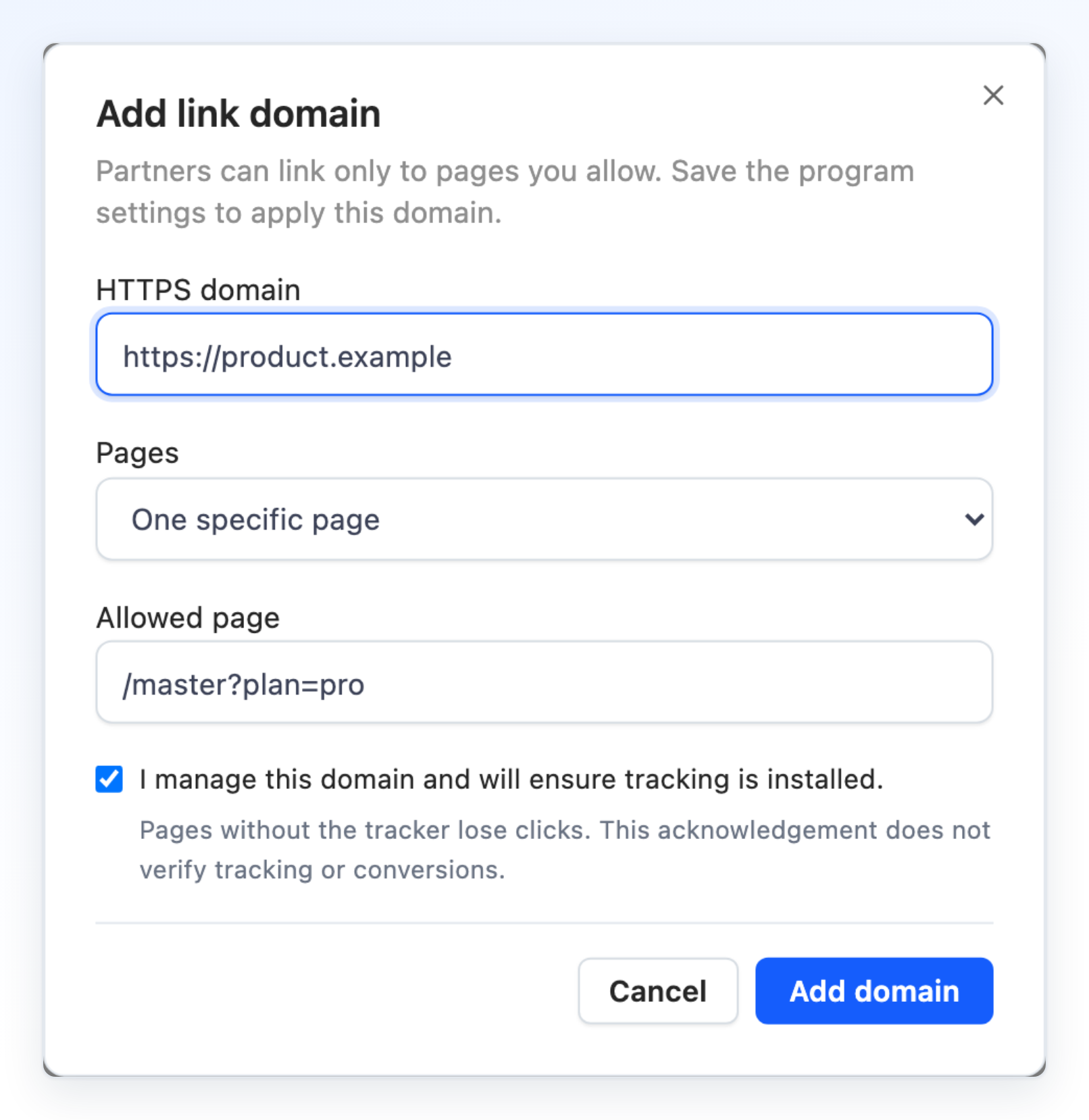
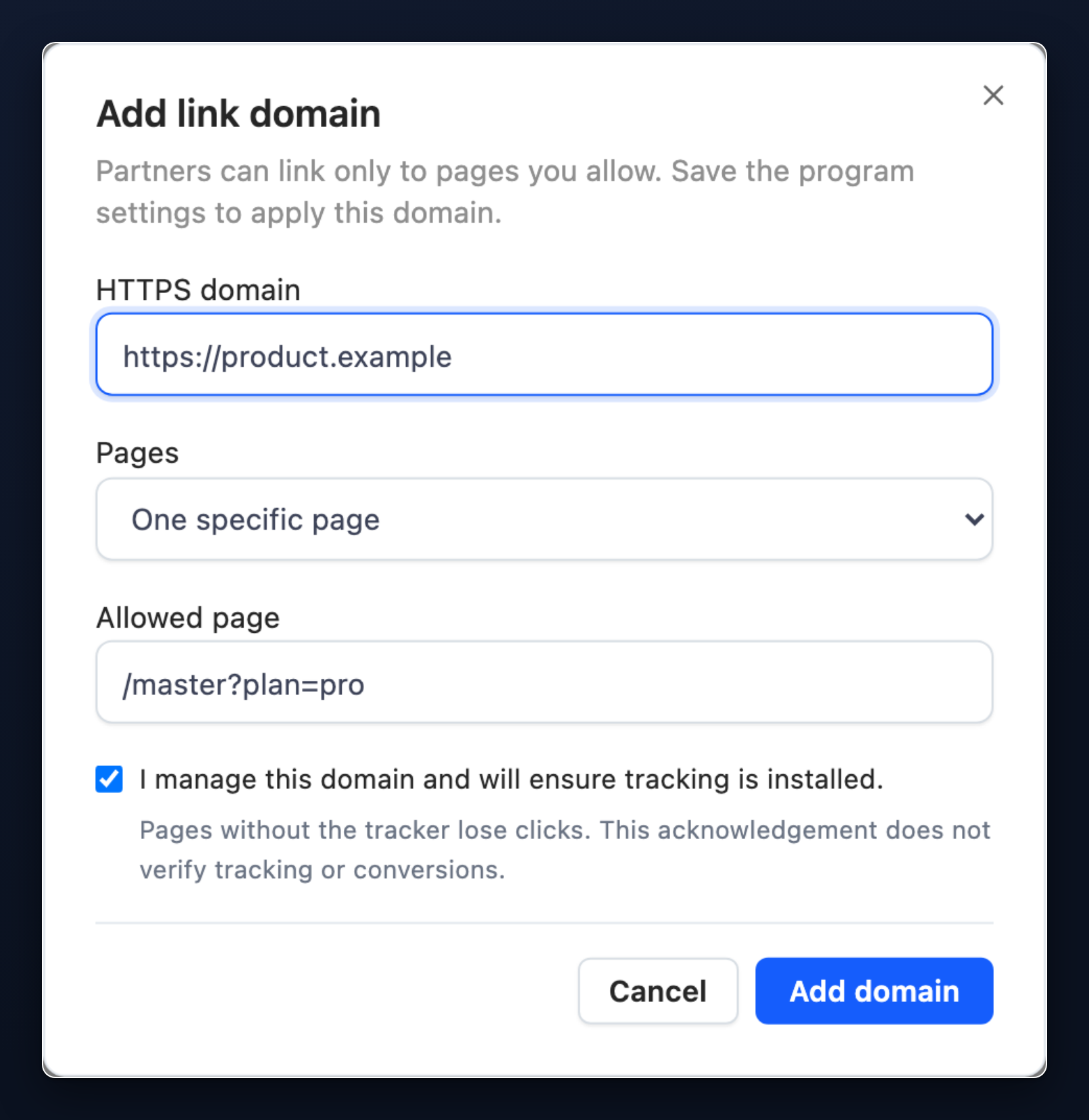
Under **Allowed destinations**, select **Add domain**. Enter an **HTTPS domain** that you manage, without a path, credentials, query string, or fragment:
```text
https://brand.example
```
A subdomain or a different port is a separate origin and needs its own entry. For example, allowing `https://brand.example` does not also allow `https://shop.brand.example` or `https://brand.example:8443`. You can configure up to 20 domain rules.
Choose a value for **Pages**:
| Choice | What the partner can enter |
| --- | --- |
| **Any page on this domain** | A path or full URL on the exact allowed origin, including query parameters and a fragment |
| **One specific page** | Only the **Allowed page** you save; the partner's path is filled in and locked |
For one specific page, use a path beginning with one slash. You can include a query string but not a fragment:
```text
/pricing?plan=pro
```
Check **I manage this domain and will ensure tracking is installed**, then select **Add domain**. This adds the rule to your form; it does not apply the program settings until you save the page. The acknowledgement does not install the tracker or verify conversions.
## Step 3: Set the additional-link limit
Under **Additional links**, enable **Allow partners to create links to your pages** and set **Additional links per partner** to a whole number from 1 to 100.
The default program link is separate. Inactive additional links count toward the limit; deleted and test links do not. Lowering the limit preserves existing links and prevents new ones while the partner is at or above the new limit. Turning additional links off also preserves existing shared links.
## Step 4: Choose a format and save
Under **Link format**, choose a **Preferred format**, then select **Save changes**. Wait for **Partner link settings saved.** before leaving.
Page links use a query URL such as:
```text
https://brand.example/pricing?plan=pro&via=partner-code
```
A program may use `aff` instead of `via`. The saved link is authoritative; partners should copy it from the list rather than construct a URL from the preview.
The short-format preview puts the page before the referral code, with the code last:
```text
https://brand.example/r/pricing/partner-code?plan=pro
https://brand.example/r/guides/getting-started/partner-code
```
The page can contain multiple path segments. When your `/r/` redirect is installed, the default homepage link keeps the single-segment `/r/partner-code` form.
The **Short** preference does not install the extended redirect handler needed for page links. An existing `/r/` homepage redirect alone is insufficient. Affitor does not yet verify that handler, so partners receive query links and the short-format preview is marked not ready.
## Step 5: Check tracking on the destinations
Install [click tracking](/docs/brand/tracking/click-tracking) on every allowed landing page. The activity text is an observation of a bounded recent sample:
| Message | What it tells you |
| --- | --- |
| **Click seen on this site** or **Click seen on this page** | A qualifying click was observed on that origin or page in the last 30 days |
| **No click seen in the last 30 days** | No matching click was found in the recent sample |
| **Tracking activity unavailable** | The available data could not establish a result; it is not a zero-click guarantee |
A click on one page does not verify the rest of the site, and none of these messages verifies signup or sale tracking. Use the [integration test guide](/docs/brand/tracking/testing-integration) to check the complete flow with the appropriate test tooling.
## Related
- [Get your referral link](/docs/partners/quickstart/get-your-referral-link): the partner's create, copy, and QR flow.
- [Click tracking](/docs/brand/tracking/click-tracking): install the tracker on each destination.
- [Program settings](/docs/brand/settings): the rest of your program configuration.